Cisco WLC 7.2 FUS code release

Cisco recently released version 7.2 of their Wireless LAN Controller code. Along with this update came something new for several administrators in the form of an ‘FUS’ update. This update is available for the 5500 , WiSM 2, and the Flex 7500 platforms and contains a variety of firmware specific updates for each platform including:

  • For the 5500 and WiSM2
  • Field Recovery image update
  • Bootloader updates to 1.0.16
  • Offline Field Diagnostics to version 0.9.28
  • USB Console to 2.2
  • MCU image update too 1.8 (5500 only)
  • FPGA update to 1.7 (5500 only)

For the Flex 7500 controllers, there is a RAID firmware update. There is no FUS update for the 2500 controller or any of the legacy platforms (they’re not supported in release 7.2 in general anyway). Buried in the release notes are a variety of nuggets, but it is imperative that this update be installed by itself with a reboot between it and the main 7.2 code release. The order is not important, just the fact that there is a reboot in-between. Additionally, in order for the FUS image to actually update the various components, you need to have a serial attachment to the WLC during the reboot and you must interact with the image upgrades in order for them to execute. This means that if you’re used to doing the ER updates that you just ‘apply and forget’, this is going to be a deviation from that process. To add to this, each update requires you to answer ‘yes’ in order happen but they’re not quick. You will end up burning somewhere south of about a half an hour to pull off a complete upgrade and if you happen to miss one, you’ll have to reupload the image and step through it again. Cisco is nice enough to tell us during the update approximately how long each will take and these numbers are fairly close to what I’ve experienced in the field. The tally on a 5500 is:

Upgrade Bootloader from 1.0.1 to 1.0.16

  • Erasing Flash (estimated 6 seconds)
  • Writing to Flash (estimated 41 seconds)
  • Checking Boot loader integrity (estimated 2 seconds)
  • Total: 49 seconds

Upgrading FPGA from rev 1.3 to rev 1.7

  • Upgrade takes about 75 seconds to complete

Upgrading Env from rev 1.6 to rev 1.8

  • Upgrade takes about 4 seconds to complete

Upgrading USB from rev 1.27 to rev 2.2

  • Upgrade takes about 11 seconds to complete

Upgrade OFD from version WLCNG OFD 0.8.1 to WLCNG OFD 0.9.28

  • Erasing Flash (estimated 24 seconds)
  • Writing to flash (estimated 111 seconds)
  • Total: 135 seconds

Upgrade Field Recovery Image from version 6.0.182.0 to 7.0.112.21

  • Erasing Flash (estimated 49 seconds)
  • Writing to flash (estimated 716 seconds)
  • Total: 765 seconds

Yes, you read that correctly – the Field Recovery Image takes a whopping 13 minutes to execute! Of interest to those of you that use the USB serial console built into the WLC is the fact that the USB update will flat out break your session. Once you kick off that particular update, you should suspend you session and wait for it to complete. The kicker of course is that you won’t know since you don’t have a console session. The lesson here is that while it is possible to perform these updates using the USB console, you’ll not regret preferring the good old fashioned RJ-45 console cable method.

If you happen to miss an update and have to reapply the image, you’ll notice that the FUS image will proactively check to see if the updates have been applied already:

====================

Checking for Bootloader upgrade

Bootloader upgrade …

Bootloader 1.0.16 is up to date.

====================

Checking for FPGA upgrade

FPGA upgrade …

FPGA image is up to date

It will perform this check for all components, but when it gets to the Field Recovery Image, it will actually ask you if you want to re-apply it:

Field Recovery Image upgrade …

        Field recovery image Current version 7.0.112.21 is up-to-date.

        Answer “y” below will force upgrade to run again.

        Are you sure you want to proceed (y/N) ? n

Again, note that if you re-apply this particular update, you’re in for a thrilling 13 minutes of ‘edge of your seat’ thrills while it completes. There is no way to cancel it and as you’re warned numerous times throughout the FUS process in bad english:

      * Lost POWER will completely kill this unit and not recoverable. *

      * There may be multiple reboot. Please let the program run.      *

Once you’ve completed your updates, and you’re observing the production image boot, it will verbosely tell you what the version of all of these components are so you can tell that they’ve been successfully applied or not:

Cisco AireOS Version 7.2.103.0

Firmware Version FPGA 1.7, Env 1.6, USB console 2.2

Initializing OS Services: ok

Applying these updates is important and does resolve a variety of issues so it is recommended to go through whatever outage window you’re going to require to apply them or you may want to consider pulling a spare (+1) controller out of service, upgrading it and moving all of your Access Points over to free up your primary for upgrade. Either way, you should do this – just make sure the updates actually apply!
Thinking of upgrading to Cisco NCS?

Cisco recently released Cisco Prime Network Control System (NCS), an update to their Wireless Control System (WCS) NMS. This update brings with it Ciscos first attempt at integrating wireless with wired management as well as network client visibility with ISE. You’re going to want to carefully consider upgrading – since many of the new features may not be applicable to all users. Among the most highlighted features are pseudo-switch management, unified client tracking with ISE/MSE, streamlined UI, and dynamic RF heatmaps (using AP to AP RSSI values). Aside from these, NCS is basically a glorified UI laid onto of WCS. Those of you familiar with the current pain of WCS profiles, templates, and the lovely flash/java map editor will be relieved to know that all of this still exists as it is in WCS 7. Aside from the glossy front end, if you’re not using Cisco switches, ISE/MSE, or some of the refreshed reports, you’re basically getting the benefit of dynamic RF heatmaps. If you’re considering migrating from an existing WCS installation to a shiny new NCS installation, there are a few potential pitfalls that you should be aware of.

Virtualization: If you’re like many WCS users, you’re probably running WCS in a virtual 2003 or RedHat Linux server. NCS comes as an all-in-one package .OVF to load into your VMWare infrastructure. Those of you familiar with Virtual Appliances will know that this particular distribution method is intended to make distribution of Virtual Appliances easier – including all of the settings you’re going to need to setup the VM. This includes CPU allocation, RAM allocation and Hard Drive space. This is a deviation from the way you may be used to. Instead of asking your Data Center team (if you have one) to carve out a 2k3 or RedHat server, and give you remote access into it for you to complete the WCS install, you now have to give them the OVF file and ask them to run through the initial setup. To make things interesting, there are three different OVFs to choose from: small, medium and large.

Small: 2 CPUs at 2.93GHz or better, 8G of RAM, 200G Hard Disk

  • 3000 Lightweight Access Points
  • 1000 Standalone Access Points
  • 1000 Switches
  • 240 Wireless LAN Controllers

Medium: 4 CPUs at 2.93GHz or better, 12G of RAM, 300G Hard Disk

  • 7500 Lightweight Access Points
  • 2500 Standalone Access Points
  • 2500 Switches
  • 600 Wireless LAN Controllers

Large: 8 CPUs at 2.93GHz or better, 16G of RAM, 400G Hard Disk

  • 15000 Lightweight Access Points
  • 5000 Standalone Access Points
  • 5000 Switches
  • 1200 Wireless LAN Controllers

The most significant challenge you’re going to have here is that you have to select the correct sizing prior to doing your installation since there is no way to migrate from one size to another post-installation aside from backing up and reinstalling your databases.

Licensing: If you’re an upgrade customer, there is a fee you’re going to have to pay for the ability to upgrade to NCS. Once you’ve gotten upgrade fee taken care of, you migrate your existing WCS licenses to NCS. The rub here is that NCS licensing is based on the UDI of the VM as opposed to the hostname of the VM as it was in WCS. This is an install-time generated value and will be different for every VM instance. This means that if you size your VM incorrectly (as described above) and you re-install it, you’ll have to do the licensing dance to get your install up and running again. There will be a limit to the number of times you can re-issue a license so this only stresses the importance of getting your sizing done correctly upfront.

Clients: NCS does not support Internet Explorer without the addition of another plug in. We’ve been utilizing IE for managing WCS along with the Flash plug-in for years now so the addition of the Google Chrome plugin to get IE to work correctly may seem like minimally troublesome, there are numerous corporate, educational, and government users with some pretty restrictive software requirements on their PCs. If you do not have access to a PC with either the supported Firefox or IE/Chrome plugin combo, you will not be able to utilize NCS.

Switch management config: In order to ‘manage’ your switches, you’ll need to have SNMP credentials defined on all of your existing gear before you add them. Shouldn’t be a huge problem if you’ve been diligent about your deployments or if you’ve been using another NMS to do your configurations. As of now, the switch management is visibility only to the hardware and clients if you’re using an MSE. If you’re using an MSE to track wired clients, you’ll also need to enable NMSP on your switches then sync them to your MSE. While this may seem like minimal effort, this does require a fairly current version of IOS and the command:
nmsp enable
if you’re adding this along with all of your relevant Civic information data bits, this could be significant effort especially if you have a significant number of switches.

Evaluation licenses: Be very cautious about using evaluation licenses to get your NCS install up and running. When you first log into NCS, if you don’t have a valid NCS license, you cannot do anything prior to adding a valid licenses. If, during your evaluation of NCS, you have another infrastructure component running an evaluation or time expiring license, you must be cautious of your NCS license expiring at the same time as your other evaluation licenses. This will throw you into an endless loop of NCS redirecting you to the NCS license page then redirecting you back to your feature license expiring.

In all, NCS is a welcome refresh to the WCS product line, and a reasonable first stab at unifying the UI across several product lines (hence the Prime name) so go grab yourself an evaluation license from here and see it for yourself!

Resurrecting a bricked NM-AIR-WLC6

Cisco recently posted this addendum to their Software Downloads section for the Cisco Wireless LAN Controller Module:

Warning: the Wireless LAN Controller Network Module (NM-AIR-WLC6-K9) is not supported in any software release after 4.2.209.0. Attempting to install 5.0 or later software can permanently damage the module.

This is a pretty recent addition and appears to have been an oversight the past year or so while they’ve been happily releasing version after version of NMWLC code without this disclaimer. If you’re like me, you’ve been keeping up on your latest and greatest software releases and you may find yourself in some murky waters if you happen to have this module. Where I landed was a module that would boot fine, but would not establish any network connectivity (management, AP join, etc). You should note that this article in it’s entirety does not apply to the NME module, just the NM. The NME module has more memory and a 1G internal interface to the ISR, the regular old NM has less memory and only a 10/100 interface. You can tell which module you have by looking at the silkscreen on the back of the module or by doing a ‘show sysinfo’ at the CLI of the controller.

This article is not supported by Cisco, TAC, or myself. You may further damage your NM if you proceed. This article is not for the faint of heart and will most certainly void any warranty you may have. If you have a bricked NM under SmartNET, you should contact TAC for a replacement unit, not follow the directions in this post. I do not guarantee any work here and you can severely damage your module, it’s flash, or your PC. Read and follow this article at your own risk!

Now thats out of the way, the specifics of my problem landed me in a situation where I could not roll back the version of code on my flash (not having network connectivity really limits you, I gotta admit). You may find yourself with a corrupt flash, unable to boot, or other general mayhem. Once Cisco released this notification, it dawned on me that the version of code on my flash was likely the culprit. Since the NMs are basically an Pentium III with some memory and a flash to boot off (similar to the CUE or Content Engine modules) running Linux, I figured I should be able to copy the flash from a good NM and I’d be back in business. Having located a donor NM (thanks to Robert B. for his support here), I assembled  the following items to move on:

  • Donor working NM to rob/copy the flash off of
  • A small screwdriver
  • Old laptop with Cardbus/PCMCIA slot
  • CF to PCMCIA adapter (like one of these)
  • USB Flash drive larger than 256M formatted something that Linux can write to
  • A Linux distribution that I could boot off of CD like DSL
  • A static bag to work off of
Getting a donor module
The first thing I did was to remove the CF module from the donor NM.
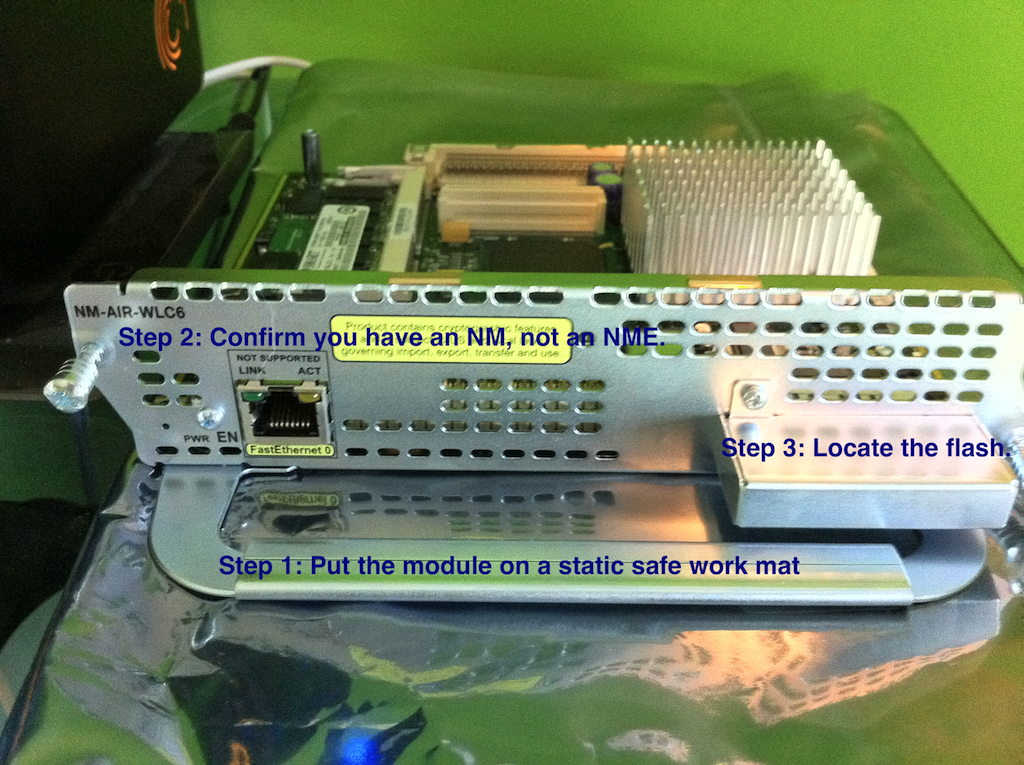
Step 1) Place the donor NM on a static safe work place. The bag it came in would be good.
Step 2) Confirm that the module you’re working on is an NM, not an NME.
Step 3) Locate the cover that hides the flash module.
Extracting the flash
You must then remove the protective cap around the flash module.
Step 1) Unscrew the CF housing.
Step 2) Lift up gently on the right edge of the cap and it should fall off the module.
Remove the flash from the NM
Gently grasp the Cisco flash module by both edges and pull it directly out of the NM.
Insert the flash module into your CF reader.
This should be pretty straightforward.
Once you have the flash module in a CF reader, we’re going to be focused on getting a good block image off of it. The rest of this article will discuss how to take an image of the flash module and store it on a USB flash drive. Once you have your favorite LiveCD of Linux (or BSD if you prefer) downloaded, boot your old laptop off of it. We chose a LiveCD release so that we can do this on a laptop without having to do a fully blown installation of Linux just for this one project. Feel free to use any sort of Linux box you happen to have laying around. 🙂
Once you’ve successfully booted Linux, you’ll need to open a terminal window. In DSL, there is a link to the Terminal app in the bottom left corner. Attach your USB drive and insert your PCMCIA flash reader once your system is booted and your terminal is up.
Type:
sudo su


  -This puts us into super-user mode so we don’t run into any permissions issues
Then:
dmesg


  -This gives you a dump of system messages. In particular we’re looking for two things. The USB drive and the CF adapter. In my system, this looked like:
<6>hub.c: new USB device 00:1d.1-1, assigned address 3
<6>scsi2 : SCSI emulation for USB Mass Storage devices
<4>  Vendor: USB 2.0   Model: FLASH DISK        Rev: 1.0
<4>  Type:   Direct-Access                      ANSI SCSI revision: 02
<4>Attached scsi removable disk sdb at scsi2, channel 0, id 0, lun 0
<4>SCSI device sdb: 2033664 512-byte hdwr sectors (1041 MB)
<4>sdb: Write Protect is off
<6> sdb: sdb1
This tells us that our flash drive is at /dev/sdb1 (the last line above) so let’s mount it using:
mount /dev/sdb1 /mnt
Next we look for our flash reader. In my system, this looked like:
<6>cs: memory probe 0xa0000000-0xa0ffffff: excluding 0xa0000000-0xa0ffffff
<6>cs: memory probe 0x60000000-0x60ffffff: clean.
<4>hde: STI Flash 8.0.0, ATA DISK drive
<4>ide2 at 0x100-0x107,0x10e on irq 11
<4>hde: attached ide-disk driver.
<6>hde: 501760 sectors (257 MB), CHS=980/16/32
<6> hde: hde1 hde2 hde3
<6>ide_cs: hde: Vcc = 3.3, Vpp = 0.0
For this one, we’re not interested in any partition information like we were on the USB device, we’re just interested in the device name. Here, we see that this device is hde (the beginning of the third line) . Once we have both the USB drive mounted and the flash drive identified, we’re going to use dd to take a block image of the device by typing:


dd if=/dev/hde of=/mnt/sdb1/nm.image
This deconstructs like this:
  -dd is the name of the application we’re going to use to take the image.
  -if=/dev/hde tells dd that the input file is the device of /dev/hde (our CF).
  -of=/dev/sdb1/nm.image tells dd that the output file is a file on our USB drive called nm.image.


This will take some time since we’re reading the CF block by block and writing it out to the USB flash drive. The resultant image will be the same size as the CF (257M in this case) since it’s copying everything – data, unused bits, partition info, etc.
Once the read of the flash is complete, you should be back at a command prompt. You can confirm that it’s there and the right size by typing:
ls -lh /mnt/sdb1


Shutdown your laptop by using:
halt


Eject the CF adapter and re-install it into your donor NM following the instructions in reverse. Once you’ve put away your good hardware, shutdown your ISR with the bad NM, remove it out of the ISR, and extract the flash out of it as described above. Insert it into your CF reader as described above, boot your laptop as described above, insert your devices (USB and CF) into the laptop as described above, and open the terminal application as described above.


Once you’re at your terminal prompt, we’re going to do the following:
Type:
sudo su


  -This puts us into super-user mode so we don’t run into any permissions issues
Then:
dmesg


  -This gives you a dump of system messages. Look for your USB device and CF device like you did before and confirm they’re there.
Now we’re going to take our image that we created above and write it out to our bad flash:
dd if=/mnt/sdb1/nm.image of=/dev/hde


This deconstructs like this:
  -dd is the name of the application we’re going to use to take the image.
  -if=/dev/sdb1/nm.image tells dd that the input file is a file on our USB drive called nm.image.
-of=/dev/hde tells dd that the output file is the device of /dev/hde (our CF).


This will take some time as well since we’re now reconstructing all of the data bits back onto our module. Once that completes, shutdown your laptop by using:
halt


Once it’s powered off, you should have a complete copy of the flash from your donor module in your hands. Reassemble your module and re-insert it back into your ISR. Power it all back on and you should be able to use:


service-module wlan-controller 1/0 session


to confirm that your module boots successfully. One of the more obvious side effects of this is that you’ll loose your NM configuration and you’ll have your donor NMs configuration now on yours. You’ll want to watch the card boot and do a clear config first off to ensure you have a good starting point. If you don’t have a donor NM to get this process done, you may want to look around to see if anyone else in your situation has the data bits from the dd process above. Once you have an extracted image, this should work on any of the like platforms regardless of where it came from.

Cisco WLC LDPE Images

With the release of WLC code version 7.0.116.0 (otherwise known as J MR1) came a slew of new features despite the MR tag. Among those images is one that is sure to cause a significant amount of confusion – especially those that may not be familiar with the dance that is Cisco software images. That feature is Licensed Data Payload Encryption (LDPE). Data Payload Encryption allows for the data that travels between the Access Point and the WLC to be DTLS encrypted. This is normally not done. Once client data is transmitted to the Access Point, the Access Point will decrypt it (this is your traditional WEP, TKIP, AES-CCM), then tag it to the correct VLAN (if applicable) and send it on it’s unencrypted merry way! If you have a need to encrypt the data on your wire – for example, if you’re joining Access Points to your controllers across a public Internet connection, this feature is what you need. This used to be an optional (paid for) feature that was included in the WPLUS license, but this was rolled into the base WLC license and is now available free of charge on all modern WLC platforms. It should be noted that if you’re using 2000, 2100, 4000, 4400, ISR modules, or WiSM 1 platforms, these do not support encrypting your data payload and none of this article is applicable to you. 🙂

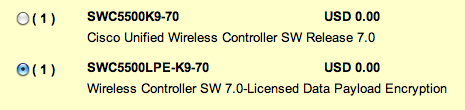
There are two different implementations of this feature – one that is an all inclusive image, one that is a separate image. Depending on the platform you’re using, you get one of those. If you are upgrading a 5500 WLC to J MR1, this is likely where you’re going to run across this for the first time which is the two image variation. On CCO, you’ll find two images:

  • AIR-CT5500-K9-7-0-116-0.aes
  • AIR-CT5500-LDPE-K9-7-0-116-0.aes

The image that requires a license to enable this feature is the second LDPE image.

Which one do you need?

The most straightforward answer to this question is that if you did not specifically purchase a 5500 with the LDPE image, you cannot install the J MR1 LDPE image onto it. This means that if you’re upgrading an existing installation, you have one choice – the ‘regular image’ AIR-CT5500-K9-7-0-116-0.aes.

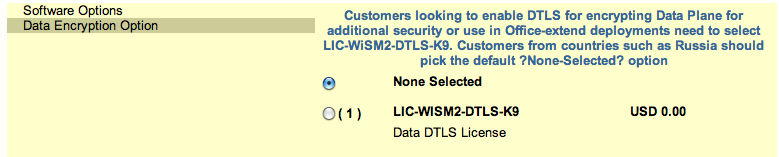
The second place you’re likely going to run into this image is when you’re quoting a new controller. To decide which image you should select is going to take a bit more thought and to come up with an answer, you should probably know why the heck Cisco split this feature out to begin with. This all boils down to regulatory restrictions in Russia. So, the short version of your thought process should be, “If I’m not installing this WLC in Russia, I shouldn’t be selecting the LDPE image version”. If you are indeed selecting this version, the license itself is a $0 option, but does need to be discreetly selected.

Now, if you’re ordering a new 2504, WiSM2 or 7500 WLC, you don’t have to select a different software image, but you do need to select the $0 license if you want this feature enabled:

To wrap up, if you’ve got 5500 controllers running today, Cisco made it so you cannot install the LDPE image, so move past it when you’re doing your code upgrade. If you’re ordering new, and not in Russia, make sure your VAR/partner gets the correct DTLS license for you!

Surveying with a 3502 (followup post)

As a followup to my previous post on surveying with Cisco 3502 series Access Points, I’ve been playing around with a few options that ultimately get the job done. As you may recall, the Cisco 3502i Access Points have different radios in them than then 1142 Access Point making the 1142 an unsuitable substitute for a site survey for those customers looking for a literal real-world picture of what a 3502 deployment will look like. Because I have several customers that won’t accept an 1142 substitute survey for a 3502i deployment, I’ve been wrestling with the best way to get this done.

  Since there was no autonomous image available, the best alternative has been to join a 3502 up to a controller, put it in H-REAP mode with a static IP address and use the same IP address as the Access Points default gateway. This prevented the AP from feeling stranded and rebooting every 15 minutes (hard to do a survey when that’s happening).
  Recently a little birdie from Cisco called me (you know who you are and thanks!) and let me know that the 1262 Autonomous code has been posted to CCO and that since the 1262 and the 3502i/e share radio chipsets, there is a good chance that the Autonomous image would work across all three models. I decided to give it a go and here’s what that attempt looked like:
Tools used:
1) PC with it’s IP address set to 10.0.0.2/24
2) running a TFTP server
3) the following IOS images from CCO: ap3g1-k9w7-tar.124-25d.JA.tar (6.5M) and ap3g1-rcvk9w8-tar.124-23c.JA.tar (2.3M)
4) A 3502 Access Point with a local power supply attached to the PC and a console connection to the AP to watch the fun!
To convert to autonomous image:
Step 1) Duplicate your ap3g1-k9w7-tar.124-25d.JA.tar image (the larger of the two) and rename it to ap3g1-k9w7-tar.default. Place this file in the root of your TFTP server.
Step 2) Depress the MODE button on your AP and power it up – release the MODE button when the LED on front turns red.
Step 3) Watch the image download
It should look something like:
button is pressed, wait for button to be released…
button pressed for 22 seconds
process_config_recovery: set IP address and config to default 10.0.0.1
process_config_recovery: image recovery
image_recovery: Download default IOS tar image tftp://255.255.255.255/ap3g1-k9w7-tar.default


Unable to create temp dir “flash:/update”
examining image…
extracting info (283 bytes)
Image info:
    Version Suffix: k9w7-.124-25d.JA
    Image Name: ap3g1-k9w7-mx.124-25d.JA
    Version Directory: ap3g1-k9w7-mx.124-25d.JA
    Ios Image Size: 5673472
    Total Image Size: 6502912
    Image Feature: WIRELESS LAN
    Image Family: AP3G1
    Wireless Switch Management Version: 7.0.94.21
Extracting files…
ap3g1-k9w7-mx.124-25d.JA/ (directory) 0 (bytes)
ap3g1-k9w7-mx.124-25d.JA/html/ (directory) 0 (bytes)
Once the image completes downloading, your AP should reboot. At that point, you should have a fully functional 3502i/e Access Point (less Spectrum Expert functionality of course) running autonomous code that you can then use to survey with!
Once you’re done with your site survey, if you no longer need your survey AP to be running autonomous code and want to put it back to lightweight mode, you can do the following:
To convert to lightweight image:
Step 1) Duplicate your ap3g1-rcvk9w8-tar.124-23c.JA.tar image (the smaller of the two) and rename it to ap3g1-k9w7-tar.default. Place this file in the root of your TFTP server.
Step 2) Depress the MODE button on your AP and power it up – release the MODE button when the LED on front turns red.
Step 3) Watch the image download
It should look something like:
Waiting for PHY auto negotiation to complete… done
Ethernet speed is 1000 Mb – FULL duplex
button is pressed, wait for button to be released…
button pressed for 21 seconds
process_config_recovery: set IP address and config to default 10.0.0.1
process_config_recovery: image recovery
image_recovery: Download default IOS tar image tftp://255.255.255.255/ap3g1-k9w7-tar.default


Unable to create temp dir “flash:/update”
examining image…
extracting info (274 bytes)
Image info:
    Version Suffix: rcvk9w8-
    Image Name: ap3g1-rcvk9w8-mx
    Version Directory: ap3g1-rcvk9w8-mx
    Ios Image Size: 2284032
    Total Image Size: 2284032
    Image Feature: WIRELESS LAN|LWAPP|RECOVERY
    Image Family: AP3G1
    Wireless Switch Management Version: 7.0.94.21
Extracting files…
ap3g1-rcvk9w8-mx/ (directory) 0 (bytes)
extracting ap3g1-rcvk9w8-mx/ap3g1-rcvk9w8-mx (2281426 bytes)……………………………….
Once that completes, your AP should be ‘back to normal’. If you find any residual config on the AP, once it joins back up to your controller, you may want to do a ‘Clear All Config’ from the AP page.
Some things to note are:
1) Most Windows installations will hide your file extensions by default. Don’t forget to remove the .tar extension from your file names when you’re moving them around else your TFTP server may throw a ‘file not found’ error.
2) Watch your console connection. I’ve seen it ask for the filename of ap3g1-k9w7-tar.default as well as c3500-k9w7-tar.default.  Just watch for the image name that it’s looking for and rename your image accordingly.

3502 surveying

So, rumor has it, if you put your 3502 in H-REAP mode, and statically assign your IP address and your default-gateway as your static host IP address, you can survey. Need to try this when I get back to civilization in January. I expect this will require some sort of loopback slug and a POE pass-through. Gonna have to bust out the crimpers! 🙂

New H-REAP ‘feature’ in WLC 7.0 code

This just in from:

When a Hybrid REAP access point enters into a standalone mode, the following occurs:

The access point checks whether it is able to reach the default gateway via ARP. If so, it will continue to try and reach the controller.

If the access point fails to establish the ARP, the following will occur.

The access point attempts to discover for five times and if it still cannot find the controller, it tries to renew the DHCP on the ethernet interface to get a new DHCP IP.

The access point will retry for five times, and if that fails, the access point will renew the IP address of the interface again, this will happen for three attempts.

If the three attemps fail, the access point will fall back to the static IP and will reboot (only if the access point is configured with a static IP).

Reboot is done to remove the possibility of any unknown error the access point configuration.

Once the access point reestablishes a connection with the controller, it disassociates all clients, applies new configuration information from the controller, and reallows client connectivity.


This means no more site surveys with lightweight Access Points running in H-REAP mode since there is no pingable default gateway. AC UPS to power a POE switch? Too bulky and hard to travel with in my book! Looks like we’ll be reverting to a ‘best guess’ survey till some Autonomous code surfaces…

Cisco WLC Config Analyzer version 2.2.3

Is available at:
If you use more than one WLC, you need this. Great way to sync configurations, check for common errors, etc. Now displays Persistent Devices from CleanAir Access Points!

Cisco launches a low cost 802.11n Access Point

Details on the 1040 can be found at:
Note the following caveats:
Slower CPU so less overall PPS compared to the 1140
2×2 MIMO
No client link
No media stream
Runs on standard POE and available in controller based or standalone. Should be a great alternative for those of you suffering from Aruba-itis. 🙂

Cisco announces 4 WLC Vulnerabilities

Including:
IKE DoS Vulnerability
HTTP DoS Vulnerability
Privilege Escalation Vulnerabilities
ACL Bypass Vulnerabilities

Details can be found at:
Of interesting note is the recommendation that all non-FIPS 5.x customers migrate to 6.0. Something we all knew anyways, but this is certainly compelling enough reason to get moved sooner rather than later. For most of us, 4.2.209.0 and 6.0.199.0 (.4) are the target code versions.
 -Sam