Drag racing the bus

Picture it. You’re a school district transportation engineer. You’re in charge of purchasing a fleet of new school busses for your district. The big ones. The expensive ones. The ones that will last you for the foreseeable future. So, you call up Bus Vendor A, B, and C and inform them that you’re in the process of selecting a fleet of new school busses. The following week each vendor dutifully delivers their ‘bus of choice’ to be evaluated. You then grab your intern, put him at the midway point of the bus from ‘Vendor A’ and take it for a spin! You see how fast it goes from 0 to 60. You see how it corners. People hear tires screeching from all over the city as you and your one other occupant sling this bad boy around town ‘evaluating’ the bus. You then repeat the same process for ‘Vendor B’ and ‘Vendor C’. You aggregate your data. You correlated your data. You make pie charts about your data. You do ROI calculations on your data. You do comfort analysis on your data. You do handling analysis on your data. You made your ‘educated’ recommendation and purchased a fleet.

Day 1 of school rolls around and the first thing your brand spanking new fleet of school busses does is immediately do the one thing you neglected to test: they loaded up with kids and trudged along at 20 MPH safely around town. You start getting complaints. They don’t stop well. They don’t handle well. They don’t get good gas mileage. They bounce all over the place and your district has to send 2,000 kids to chiropractic care because you didn’t evaluate the bus under the conditions it’s going to be used in. Instead, you took it for a joy ride. You drag raced it. The one bus that went the fastest with a single guy in it, you bought. When you deployed it, it broke because you didn’t test it using real world scenarios.

Please, don’t drag race your evaluation Access Points. Test them like you’re going to operate them. That way you get a realistic view of how they’re going to behave in the real world. Do your self a favor. Stop joy riding your vendors gear and put it in the real world to test it.

This blog inspiration courtesy of @florwj . Go follow him. He’s awesome.

-Sam

The FCC.

Here in the states, we have a regulatory body called the Federal Communications Commission (FCC). As it pertains to the Wi-Fi world, they tell us what channels we can use how obnoxious we can be (strength) in those channels. We have what you would consider to be a ‘blanket rule’ that basically states ‘within a given number of frequencies, you can do anything you want as long as you limit yourself to a maximum power’. A very intentional byproduct of these rules is the relatively low cost of WiFi components. Since we don’t have to submit everything we operate to the FCC for validation, we have no ‘validation costs’ to pass onto our end users. In short, the FCC, as a regulatory body imposes rules and restrictions on our use of wireless frequencies in the name of the greater good. This generally works very well, creating the ecosystem of ‘small cell’ give and take that we live in today. You are given the choice to make your own determination if analog video cameras, microwave ovens, X-Box controllers, etc should take priority or if your Wi-Fi should. Political challenges aside, we’re masters of our own domain.

So what happens when someone does something outside the norm? What happens when someone violates the FCC specifications? What happens when someone fires up 10 watt outdoor analog video feed in 2.4GHz and points it at the broad side of a hospital?

As it turns out, someone recently did just that. I was asked to assist with locating what was being detected as a whole bunch of analog video cameras that hogging up all of Channel 1 in 2.4GHz along the broad side of a hospital. As you could imagine, with a good 100 or so Access Points all excluding channel 1 (due to interference) from their channel plan, this meant that a two channel plan was all that was left (6 and 11). After much sleuthing, we determined that the signal was traveling well in excess of 10 city blocks! In my book, that certainly fit the bill for ‘obnoxious’. With more than a little hesitancy, I went to the FCC web page for complaints and filed one.

We're concerned with Wi-Fi Jammers.

We’re concerned with Wi-Fi Jammers.

Once my complaint went off into oblivion, I’ll be honest with you, I didn’t expect to hear anything from them at all. Instead, a few weeks later, I got a letter in the mail with the usual FCC ‘devices must accept interference’ text that you’d expect from a Federal entity. I was heartened by the fact that I got a response however, and there was a ‘for more information call this number’. They offered, I did. The nice Federal employee took my call, listened to my acknowledgement of the letter, listened to my insistence the letter was insufficient, and listened to my complaint that there was something going on that the FCC clearly needed to get involved in. She thanked me for my time and stated that she would escalate my case. This was the last I personally heard from them.

I was fortunate enough to have some contacts near the building that we suspected was generating the noise. Sure enough, a couple of weeks later, they informed me that a FCC field agent showed up asking questions. Shortly thereafter, the video camera signatures stopped being detected, the channel cleared up, and things got back to normal at my customer.

The point of all of this is that you do have a friend in the FCC. They’re not the most communicative, timely, or ‘feel good’ organization I’ve ever worked with, but if you have no other choice, and you can prove reasonably that there is a strong need for them to get involved with a neighbor that being obnoxious, they will. Start to finish, once I engaged the FCC, it took roughly 2 months to get back to normal. Don’t expect them to be quick. Don’t expect them to believe you. Don’t expect them to understand what you’re saying. Do be patient. Do be persistent. Do be kind. You don’t want to make a Fed angry.

Here are some good times to engage the FCC:

  • You can prove beyond the shadow of a doubt that something beyond your sphere of influence is causing harmful interference to your Wi-Fi network.

Here are some good times to not engage the FCC:

  • Your ER department won’t buy new Microwave ovens
  • Your security team is installing analog video cameras
  • Your customers are bringing gaming consoles onto your property and using them
  • Your co-worker put a 20dBi antenna on a 200mW radio outside (although, this is a good way to get them called on you!)
  • You believe you have external interference, but don’t have a Spectrum Analyzer to prove it

If you need a Spectrum Analyzer, head on over to the MetaGeek folks and check out their Wi-Spy Mini or their Wi-Spy DBx for a good cost effective way to tackle interference issues. If they get too big, rest assured that Big Brother is out there – just a complaint form and a couple phone calls away…

WPA/TKIP only going away in Cisco WLC release 8.0

Cisco is readying the next major release of their WLC code, version 8.0. At the advocation of the WFA, this will bring with it a very significant change in security capabilities that you may find impacting if you’re caught unaware. In an attempt to raise awareness, Cisco has approved an discussion of this change first mentioned here. Cisco, in accordance with the new WFA guidelines, will no longer be allowing an SSID configuration with WPA/TKIP only security. If you are currently using an SSID that has WPA/TKIP only security, your configuration will automatically be updated to enable WPA2/AES connectivity as well as WPA/TKIP. You may want to start validation testing now if you are currently supporting legacy devices on a WPA/TKIP only SSID today. The easiest way to ensure you’re not caught by this change is to enable WPA2/AES along with WPA/TKIP and check to make sure your devices still behave as expected. I have confirmed in the lab that this change will be automatic:

WPA-TKIP only configuration pre-8.0

WPA-TKIP only SSID configuration, Pre-8.0

WPA2-AES added post-update

Same SSID with WPA2/AES enabled post-update.


To summarize of the variety of allowed and disallowed potential configuration options you have available and if they’ll be supported in WLC 8.0:

WPA1-TKIP (Disallowed due to eliminating TKIP)
WPA1-AES (Allowed by Extension Policy)
WPA1-TKIP/AES (Disallowed since not used in conjunction with WPA2-AES)
WPA2-TKIP (Disallowed due to eliminating TKIP)
WPA2-AES (Certified and allowed)
WPA2-TKIP/AES (Disallowed due to WPA2-TKIP)
WPA1-TKIP + WPA2-TKIP (Disallowed – no AES support)
WPA1-TKIP + WPA2-AES (Certified and allowed)
WPA1-TKIP + WPA2-TKIP/AES (Disallowed due to WPA2-TKIP)
WPA1-AES + WPA2-TKIP (Disallowed due to WPA2-TKIP)
WPA1-AES + WPA2-AES (Allowed by Extension Policy)
WPA1-AES + WPA2-TKIP/AES (Disallowed due to WPA2-TKIP)
WPA1-TKIP/AES + WPA2-TKIP (Disallowed due to WPA2-TKIP)
WPA1-TKIP/AES + WPA2-AES (Allowed by Extension Policy)
WPA1-TKIP/AES + WPA2-TKIP/AES (Disallowed due to WPA2-TKIP)

Other SSIDs and security configurations are not impacted, including Open SSIDs, any SSID that currently has AES enabled, and WEP SSIDs.


UPDATE: Due to user feedback, Cisco and the WFA finally settled on making the above restrictions in the GUI only. If you still have a business need for a WPA/TKIP SSID, you can configure it from the CLI. If you were building an SSID on a Cisco WLC with an ID of 6, you would use the following commands for example:

config wlan create 6 TKIP-ONLY
config wlan security wpa wpa2 disable 6
config wlan security wpa wpa1 enable 6
config wlan security wpa wpa1 ciphers tkip enable 6

Using the show commands you can validate that this configuration took at the CLI:

show wlan 6

Wi-Fi Protected Access (WPA/WPA2)…………. Enabled
WPA (SSN IE)…………………………. Enabled
TKIP Cipher……………………….. Enabled
AES Cipher………………………… Disabled
WPA2 (RSN IE)………………………… Disabled

MythBusters WiFi: Xirrus

I’ll be the first to admit that when I see something ‘out of the norm’ I shudder and have a knee-jerk reaction that is not always positive. There is so much success around the tried and true enterprise approach to wireless of using omni directional antennas that when you see someone intentionally deviate from it, it can be jarring to say the least! I’ve had the pleasure to be present at the Xirrus Wireless Field Day sessions for WFD5 and WFD6 and I can honestly say that they did a superb job of taking a contentious topic and addressing it head on. For those that are unfamiliar with the Xirrus product, their unique approach to wireless is to stack multiple Access Point radios into a single housing and use highly directional antennas to create an ‘Umbrella Corporation logo’ of coverage:

Image likely copyrighted by Capcom

(it should be noted that I do not believe that Xirrus is somehow evil, involved in genetic engineering, or otherwise a bad company – the logo is simply an easy way to represent a high degree of directionality from a centralized point)

Adding multiple radios into a single housing is not a unique approach. Most everyone on the market starts with two radios in their Access Points and you can even find a handful of three-radio solutions, but Xirrus takes this approach to the next level by stacking as many as 16 radios into a single Access Point! The challenge that other manufacturers do not need to address is overlap. In a standard two or three-radio approach, you typically operate one radio in 2.4GHz and the other in 5GHz (and for those rare 3rd radio guys, they usually stick that radio in monitor or listen-only mode). Tack some omni directional antennas on those bad boys and you’ve got yourself an AP! Xirrus however, intends to have multiple radios in a single AP operate on in the same frequency. This presents some challenges about the efficiency you can gain from having more than one radio in the same frequency in the same physical package (AP). At WFD5, there was much gnashing of teeth regarding how you accomplish this in one package. I’ll not go over the gory details, the video is posted here. Xirrus came back to WFD6 and brought with them their Director of RF Engineering, Avi Hartenstein and tacked the conversation head on.

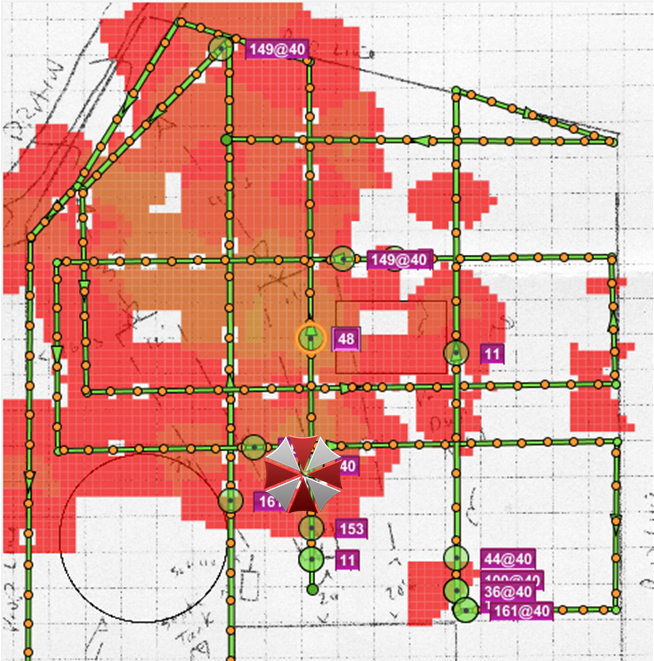
My goal was simple with this post. I wanted to prove that directionality does exist in the Xirrus product once and for all. I was able to acquire a 4 radio array and decided that the best approach to visualize this purported phenomenon was to actually survey with an AP in an area with no obstructions (scientific, no?). I took the array, statically assigned one of the radios to a fixed channel, turned its power down to -15dBm (yes, they go *that* low!), and took it outside. The results speak for themselves:

 Umbrella logo likely copyrighted by Capcom

Ladies and gentlemen, you saw it here first (or maybe not) – the myth of the Xirrus wedge is real! You can see near the bottom of the image where the AP was placed (at random orientation). I peeled this wedge view out using Ekahau’s Site Survey application after quite a walk outside in the cold. This directionality is fairly easy to see even with my coarse sampling outside. It should be noted that it will be near impossible to visualize this dramatic of a wedge indoors however due to the prevalence of those pesky attenuators otherwise known as walls and furniture.

I’ve seen my fair share of wireless deployments, I know what I’m comfortable with, I know when I move outside of my comfort zone. An experience I reference often is an educational facility that was using directional patch antennas indoors on 10 ft ceilings pointed at the ground. While this is a startling design, when I dug deeper into their design methodology, I discovered that they surveyed using the exact model of antenna and AP that was deployed, correctly visualized the resultant zone of coverage, and validated that this met their applications need. While not a solution I would lead with, there was no fault with their design methodology or implementation, and the infrastructure operated as designed. When you tackle a Xirrus deployment, I would advocate the same approach: understand your needs (throughput, density, coverage, etc), and design to meet those needs using the gear you will be deploying. Survey what you deploy, deploy what you survey. In the Xirrus world, this presents a few design choices to consider:

1) Orientation of the AP.

The Xirrus array has a compass in it. Use this compass to determine the orientation of your array during the survey and ensure that when it gets deployed that this lines up correctly (use the logo on the housing if you need to).

2) Oversubscription.

You must pay close consideration to the number of uplinks to your array and balance this with your deployment expectations. Oversubscription is nothing new so don’t let this scare you – just be aware that you’re moving your uplinks (and potential bottlenecks) further up the line (closer to the AP). This is going to be particularly important as you consider updating your array to newer technologies such as 802.11ac.

3) Powering the Array

Ensure that you have made concessions for powering the array. This will likely require an external power injector but sourcing them along with the array should not be problematic.

4) Antennas change with the modules.

One of the most insightful things I learned from the WFD sessions are a reinforcement that the antenna is part of the radio module. When you replace that module, you replace the antennas that are a part of that module. This could potentially impact the RF of your deployment and will most assuredly change the visualization of your survey data.

Xirrus uses highly directional antennas in a unique way to extend the reach of a radio. This coupled with a low powered radio gives you a number of excellent design pieces for most any wifi environment or need. Pay close attention to the number of radios that you need, apply some logic and reason to your design (don’t expect 8 of your 16 radios to operate in 2.4GHz for example) and make sure your celling has sufficient mount points. The arrays can be weighty. 🙂
Meraki: The bolt on Cloud that wasn’t

When Cisco acquired Meraki last year, there was much confusion. Being ‘down in the trenches’ I struggled as much as the next guy trying to wrap my head around the acquisition and I believe I have a good handle on it. Others not so much. I regularly consult with customers that are just as confused today as they were last year. Cloud is such an over used buzz word and so many vendors are trying to jump on the buzzword bandwagon de jour that it’s easy to get lost admist the jargon and solutions, much less the technical merits or differences in the platforms. I’m here to offer some advice on the strategy and perhaps a perspective on the acquisition that you haven’t yet considered. First some advice:

Don’t purchase Meraki Access Points. You read that right. Don’t do it. Also, don’t purchase Meraki switches. For that matter, don’t buy the Meraki firewall either. If you purchase a Meraki Access Point, a Meraki switch, or a Meraki firewall, you’re not buying an Access Point, you’re not buying a switch, you’re not buying a firewall. You’re buying ‘The Cloud’. When you consider purchasing infrastructure equipment that is ‘Cloud Enabled’, this should be a purchase that lines up with your organizations Cloud Strategy first and foremost. Don’t have a Cloud Strategy? Don’t be so sure. There are a few questions to ask yourself before you jump to that conclusion. Does your organization use DropBox? Salesforce.com? Office 365? Webex or Goto Meeting? Google Mail? All of these are examples of Cloud Applications. If you use these, someone, somewhere in your organization has made the determination to embrace services from ‘The Cloud’. Understand this strategy. Understand what this enables. Understand what this means to your data and where your data lives. Then (and only then) should you consider purchasing ‘Cloud Managed Infrastructure devices’.

Let’s be frank about it, there’s nothing special about the hardware in a Meraki Access Point. There’s nothing special about the hardware in a Meraki Switch, nothing special about the hardware in a Meraki firewall. When you purchase Meraki equipment, this gear is purpose built to be Cloud Managed with features driven by that Cloud Management. When you make a Meraki purchase, purchase an end-to-end Cloud-enabled infrastructure. If it’s right for one component, it’s right for all of them. If it’s not right for all of them, it’s not right for any of them.

Now some perspective. Everyone is talking about Cloud. Everyone wants in on the Cloud action. Everyone is ‘bolting on’ Cloud to their existing products in some fashion or another. When Cisco purchased Meraki, they made a decision to not ‘bolt on’. They decided to pick the one organization that understood Cloud from bottom to top and embrace that strategy despite the fact that there was some hardware overlap. The Meraki acquisition wasn’t about Access Points, switches, or firewalls. It was about finding the one organization that was never built for ‘on premises’ management and this shines through in every aspect of their products. Others tout ‘free protocols’, ‘cloud provisioning’, or a variety of other nonsense but at the end of the day, these are bolt-on solutions that are all afterthoughts. I would encourage you to revisit the Meraki product portfolio but when you do, ask yourself the following questions:

  • What are my existing Cloud Applications?
  • How do I rely on ‘the Cloud’ today?
  • Do I want to leverage that existing strategy in my infrastructure?
  • Do I want a solution that is built from the ground up around ‘the Cloud’ with a no-compromises featureset or do I want to deal with someone bolting on features to their existing ‘heavy gear’?

Then go buy a Meraki AP.

Bridging networks on a VM

So, you’ve got your shiny new Mac and you’re in that ‘in-between’ time where you’re running a VM to support all of your Windows needs. You decide that your VM needs to be connected to the same Layer 3 network as your physical box so you decide to change your VM network settings from ‘NAT’ to ‘Bridged’. This seemingly simple configuration change has some pretty significant ramifications in the Cisco wireless world however so you may be shocked to find out when you take your beloved Mac back to work that your VM stops getting an IP address! As it turns out, there is a feature enabled by default on a Cisco lightweight wireless infrastructure that is spelled out thusly:

In the controller software Release 5.2 or later releases, the controller enforces strict IP address-to-MAC address binding in client packets. The controller checks the IP address and MAC address in a packet, compares them to the addresses that are registered with the controller, and forwards the packet only if they both match. 

Since your Mac(intosh) uses a single adapter (your WLAN adapter) for the connection to the network, the controller only sees a single MAC address. This means that it will only let a single IP address talk on the network since it’s expecting a 1:1 mapping of MAC address to IP address. The quickest way around this is the following global command on your WLC:

config network ip-mac-binding disable

Which will remove this 1:1 mapping expectation. Don’t forget to save your config and you should be good to go with IP addresses issued via DHCP to both your real machine and the Virtual Machines living behind the bridged VM network!

It should also be noted that many ‘security appliances’ serving as your DHCP server will refuse to issue multiple IP addresses to a single MAC address, effectively recreating identical symptoms (a VM that get’s no IP address). As far as I know, there is no workaround aside from not using a security appliance for your DHCP server. This is believed to afflict both Palo Altos as well as ASAs and is likely to impact anything else under the guise of a ‘security appliance’. Your best bet is to try and put DHCP services on a real server (Windows DHCP or Linux ISC-DHCPD) or try running it in IOS on your next hop Catalyst switch. You *do* have a next-hop Catalyst switch, right? 🙂

Aruba just doesn’t get Investment Protection

This week, Cisco launched their modular 802.11ac Access Point, the AP3700. The FUD that started almost instantly was unbelievable. This petulant mud slinging is coming from from none other than our good buddies over at Aruba who are trying with all their might to convince all of their AP134/135 users to go buy a new Access Point. While this rip-and-replace mindset has boosted their volume sales over the past several years, I think it’s time that we all revisit what modularity means and why it’s good. We’ll get this bit out of the way first however since it seems to be a common misconception about modularity: Modularity is not only about 802.11ac, it is about investment protection. Aruba wants to spin this to convince you that you a) need to buy a new AP and b) while you’re at it, let’s try and sell you a controller! This slight of hand and misdirection is really in poor form and we should all take a moment to bring this conversation back to the real world. The 802.11ac wave 1 module is one of 4 modules, and one of two Cisco 802.11ac platforms to select from. No one is forcing you to purchase a module to get 802.11ac. Cisco has a ‘rip and replace’ option as well. If you’re okay with the rip and replace approach to 802.11ac (as an Aruba customer you should be used to this by now), by all means – let’s compare a head to head AP3700 against the AP-225 (I’d do this, but for some reason they’re reluctant to send me an AP-220) using clients that are available in a the real world today. By the way, wasn’t it Aruba just a few months back complaining about Cisco using Miercom and proving that the 5760 beats the stuffing out of the 7240 controller and that the AP3600 whomped all over the AP134/135?

Let’s recap the FUD: When the AP3600 was announced, Aruba predicted:

  • That modularity doesn’t work: FALSE – Modularity does work, and has worked since the Cisco 1220 (802.11b to 802.11g migration).
  • That Cisco won’t ship modules ever: FALSE – Cisco has shipped two modules and is on track to ship an additional two.
  • You’re better off buying a new AP: FALSE – well, maybe not false. If you’re an Aruba customer, you have no choice.

This last one is really the sticking point. Most of the customers I talk to can’t stomach a new AP upgrade every year. They’re more along the lines of 3 to 5 year refresh cycles. Realistically speaking, if my upgrade cycle hit last year I could have done one of two things:

  1. Purchased Aruba AP134/135s. This means that I cannot get any sort of 802.11ac without ripping and replacing.
  2. Purchased Cisco 3602s. This means that if I need it, I can deploy 802.11ac (wave 1 or wave 2!), monitor mode, or indoor cell DAS modules at a fraction of the price of a new AP.

At the end of the day, modularity is not intended to be a one size fits all approach to technology. It’s right for some people, it’s not right for others. When it comes down to it, you can either buy more Access Points, or less Access Points, and still get current technology. If you’re considering the Aruba platform today, I’d encourage you to ask the following questions:

  • What do I do with last years APs?
  • How do I get to 802.11ac wave 2 when it comes out?
  • How do I deploy indoor cell DAS leveraging my existing APs?
  • How do I do wIPS without buying a whole new overlay solution?
  • Why aren’t you comparing against the AP3700?

In the meantime, let’s keep Aruba pointed in the right direction shall we? The modular platform argument is one that Cisco battles time and again – look at all of the people that used to hate on the Catalyst 6k platform? They had nothing to compare so, certainly modularity was bad! Modular is good, investment protection is fiscally responsible, and flexibility means that I can get some of todays technology where I need it, when I need it without breaking the bank on forklifting my infrastructure. By the way, let’s do a speeds and feeds with an AP220 and an AP3700 and see how those bar charts look…

In short, it doesn’t matter who’s infrastructure gear you’re buying. Moore’s law means that there will always be a pie chart or bar graph trying to convince you to buy something shiny and new. Modularity is about getting some of that shiny new, without having to forklift your gear – investment protection.

Troubleshooting done Motorola style!

The packets don’t lie. Any CWAP will tell you that. They’re the foundation of what we do in networking and one of the most troublesome things to get your hands on at times. One of the most significant challenges is that you rarely get to capture the ‘radio view’ of your packets. It’s usually a conversation about getting close enough to a radio, or putting an adapter or radio into promiscuous or sniffer mode and listening to what you can hear – this has always seemed somewhat ‘best effort’ to me since there’s always a small chance you’re not listening at the time that a packet is on the air. Wouldn’t it be much better to just have a copy of the packets that hit your Access Points radio interface just copied off somewhere for you to explore at your leisure? That way you have an honest view of what the actual infrastructure is either sending or receiving. Well, that’s exactly what Motorola allows us to do with a superbly easy to use, yet very powerful feature of their Wi-NG 5 Operating System. Once you have a radio up in Wi-NG 5, you can telnet/SSH to the Access Point and use the service pktcap command to capture your packets – while servicing clients!

In order to explore this feature, we need to know what we want to capture (1 client, all packets, arp traffic, etc), how much we want to capture (x number of packets), what direction we want to capture the packets (inbound, outbound, both), and where we want to save the packets to (terminal buffer to look at them, tftp, tzsp, etc). There are far more features that I’m glossing over for the sake of brevity, but this short look should be enough to get even the newest person up to speed! In my example, I want to capture the next 100 packets of all traffic that comes into all radios and I want to save it off to a tftp server.

ap6521-E3BEF4#service pktcap on radio all count 100 direction any write tftp://192.168.3.10/motorola.cap 
Capturing up to 100 packets. Use Ctrl-C to abort.
100
ap6521-E3BEF4#

Let’s dissect this command:

service pktcap on radio all

This tells the Access Point to start a packet capture on all radio interfaces and is the first component of ‘where to capture’ the packets from. You would usually pick a singular radio by using the numeric index (1 through 1024) or just leave it at all for seeing all packets in the air.

count 100

This tells the packet capture service to capture the next 100 packets and can be 1 to 1000000 packets.

direction any

Tells the packet capture service to capture inbound, outbound, or packets in both direction (coming into or leaving the radio).

write tftp://192.168.3.10/motorola.cap

Tells the packet capture service to copy the capture file out to my tftp server (192.168.3.10 in this case – expect yours to be different) and what to name the file (motorola.cap in this case). You can followup this command with a filter keyword to select type of traffic, src, dst, and a whole host of other options to pare down your capture.

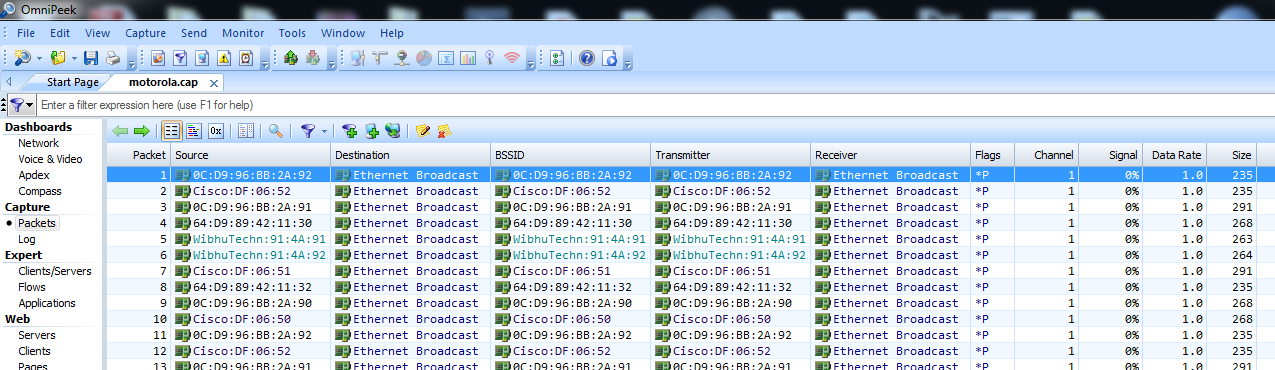
Once you’ve captured the file, get it off of your tftp server in whatever way pleases you best (I run samba on my tftp server and can do a direct network neighborhood browse for it) and double click it. If you have wireshark or OmniPeek installed, it should open up into the default view for the packet analyzer and start showing you packets!

Screen Shot 2013-08-27 at 4.28.02 PM

Screen Shot 2013-08-27 at 4.28.09 PM

In all, a very elegant way to get packets out of your Access Points. These are the packets of your clients and the ability to capture them live off of your infrastructure (similar to a wired span port) is an invaluable feature when troubleshooting.

Full disclosure: As a delegate for Wireless Field Day 4 and 5, Motorola gave me an AP6521 and an AP6522 without commitment to comment or blog. If you want to know more about the Motorola wireless portfolio, you should follow @MotWireless on twitter!

MetaGeek inSSIDer for Office hands on

The unstoppable MetaGeek.

Talk about a company that knows their target audience! MetaGeek proves once again that they can pull off simple to use tools that incorporate legitimate (and sometimes difficult to get) data into a simple to use interface, targeted at a specific type of user. In this instance, MetaGeek has launched their inSSIDer for Office product – intended to provide the small office user unprecedented insight into their RF to help them make intelligent decisions about their wireless infrastructure.

The first thing you should know about MetaGeek is that they specialize in visualizing spectrum analysis data. This is the geek-out squiggly lines that your favorite wifi engineer loves to gaze at for hours on end (okay, maybe not – but you get the point). In inSSIDer for Office, they incorporate some pretty significant RF spectrum analysis data with a no-nonsense approach to telling what you need to know. This product is targeted squarely at the office user (and is named aptly). If you run a small office with a couple of wireless Access Points, you need this. inSSIDer for Office couples MetaGeeks WiSpy-Mini product in an easy to use form factor with your laptops existing wifi adapter to tell you not only what wireless networks are around you, but what the raw RF behind the scenes is doing. If you are experiencing interference from a microwave oven – or other wifi interferrer, this will show that quite nicely. Basically, if you’ve tried to use the netstumbler type products (even the free MetaGeek inSSIDer for home) but are looking for a low-cost ‘step up’ – this is it.
With an easy to use user interface, the main page of the application is broken up into four sections that logically flow from left to right starting with a good ‘Learn tab’ that gives you a good overview into what you’re about to see.

ImageFollowing through the top tabs into Networks, Channels, and Analyze basically walks even the most novice user logically through visually displaying what they have in the air around them, what’s free/used, and gives you a really strong understanding about what’s going on in the non-802.11 world without needing a degree in understanding RF.

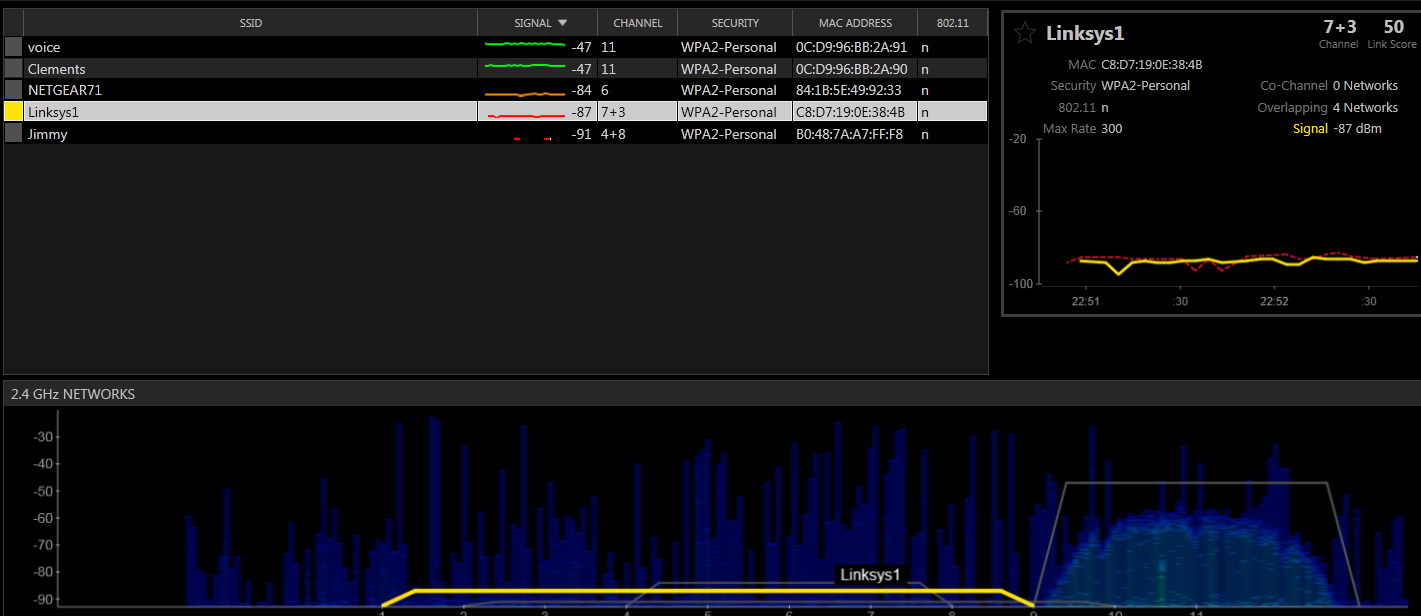
Once you’ve launched the application, the Networks tab gives you a wealth of information including a spectral mask view in the bottom of the page as well as a list of SSIDs in range of your adapter.

Image

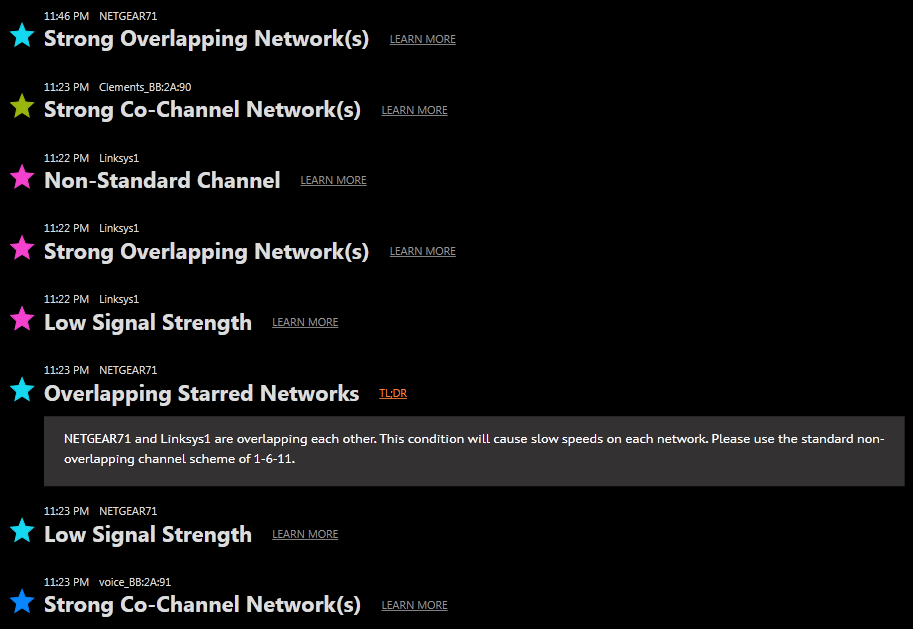
The first thing you should do is select your network from the list by moving up and down using the arrow keys then pressing the intuitive ‘s’ key for select. Once you’ve ‘starred’ your network(s), pop on over to the Channels view for a good Green/Yellow/Red view of your environment, then onto Analyze for an easy to read and understand ‘observed issues’ with your selected networks – including some no-nonsense advice for you such as, “Overlapping Starred Network: This condition will cause slow speeds on each network. Please use the standard non-overlapping channel scheme of 1-6-11.”. The application is deceptively easy to use but don’t let it fool you.

Image

The fine folks over at MetaGeek once again have taken some very complex data, well beyond what you can get with the free tools, and incorporated it into an easy to use, accurate, and cost-effective tool for the small office environment. Any semi-tech savvy user, office admin, or support-geek will find that this pays for itself in very short order.

Full disclosure: I met up with the MetaGeek folks over at Interop recently where I spoke with them about inSSIDer for Office. They gave me a copy of the product to review without obligation. MetaGeek regularly supports such events as the Tech Field Day events and make products that even the most seasoned WiFi expert should have in their toolbag. I can’t wait to see what they come out with next!

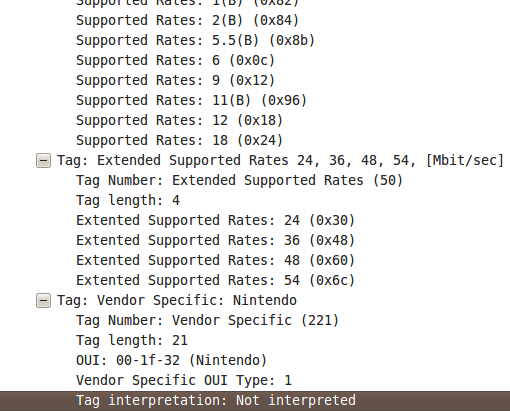
Tag: Vendor Specific: Nintendo

Yes, you read that right – Nintendo. It’s no secret that I own and use Nintendo equipment (now the source of two blogs!). What did surprise me is that during the course of some routine attacking of my home network (doesn’t everyone?) I happened across some very interesting Probe requests showing up:

Yes – that is a Probe Request that is asking for the SSID “Nintendo_3DS_continuous_scan_000”. This is particularly interesting since a) I hadn’t powered on my Nintendo 3DS in about 3 months (thank you CCNP) until last night and b) when I was done playing with it, I just closed the lid thinking it would just go quietly off into standby. Clearly that wasn’t the case so I hunted around for where I dropped it last and opened the lid. To my surprise, the Probe Requests stopped! Closed the lid and in about 10 seconds, they started again! Clearly something is going on here so I dug a little further… Inspecting the Probe Request reveals some interesting tidbits – down towards the bottom is “Vendor Specific: Nintendo”:

Further inspection of the ‘Tag interpretation: Not interpreted” reveals a good chunk of interesting looking data:

After a bit of digging, I stumbled across the data I was looking for! The SSIDs being probed for are part of Nintendo’s StreetPass service that allows ‘sleeping 3DSs’ to share data such as Mii Plaza data and other games that are ‘StreetPass enabled’. The fine folks over at 3dbrew spell this out quite nicely – The first byte of this (01) is the Vendor Specific OUI Type. The next byte (11) is likely Protocol Identification. The next byte (05) in this example is the length of the StreetPass services being advertised. The next 5 bytes (length from the previous byte) in this case are 00 05 40 00 30 are the actual services being advertised – in this case, Super Mario 3D Land. The next two bytes (f0 08) seem to be a marker of the end of the services. Everything after that appears to be my unique StreetPass ID.

Here is another capture showing two sets of StreetPass services:

The same beginning (01 11 11) followed by a StreetPass services length (0a which is twice as long as 05 – someone check my math on that!). This means that there should be two StreetPass services advertised – each 5 bytes long. The next 5 bytes are 00 03 74 00 00 (which I believe belong to Lego Pirates of the Caribbean) and 00 05 40 00 30 (which match my Super Mario 3D Land example above!) and the closing bytes f0 08 then my StreetPass ID.

Here is another capture showing a single StreetPass service identified by the 3rd highlighted byte (05) and the following ID of 00 02 08 00 00. This particular StreetPass service is the Mii Plaza – basically ad-hoc twitter and IRC with goofy avatars all rolled into one!

Okay – 1 more then, I’ll stop. 🙂

Here we see the same intro (01 11) followed by 0a which means we have 10 byes of services (or two services). The first one (00 02 08 00 00) we’ve seen before – it’s Mii Plaza. The second one (00 03 06 00 30) this time line up to Mario Kart 7 followed by our end of StreetPass services (f0 08) and my StreetPass ID.

If you have a Nintendo 3DS and want to see what StreetPass services you (or your children) have enabled, goto System Settings -> Data Management -> StreetPass Management. You should see a matching number of StreetPass services to the StreetPass Service Length field in your packet capture. Decipher yours out and let me know which ones you have!

-Sam

Post script: I now understand why this thing eats batteries in ‘standby’. 🙂